
Reporting on Enhanced Emails Uploaded by Match My Email
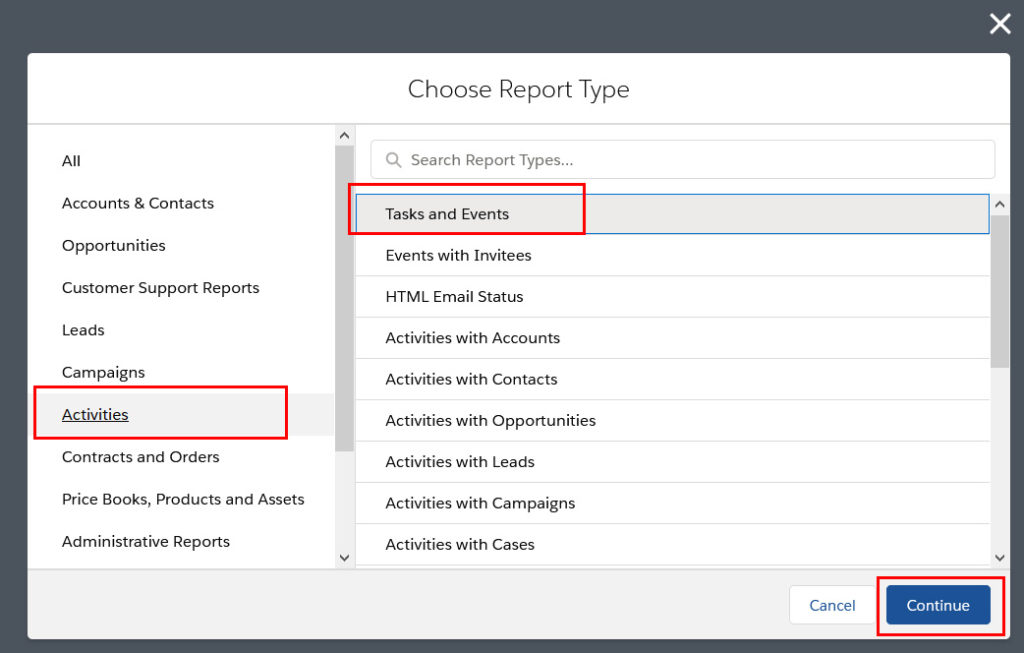
helpH2 This article is for Users who are having Match My Email automatically upload email to Salesforce as Enhanced Email. Those that are using the Match My Email custom object have different reporting options. You can read about accessing data via custom report types and also through the use of summary fields we can provide […]
Allow third-party cookies for Chrome
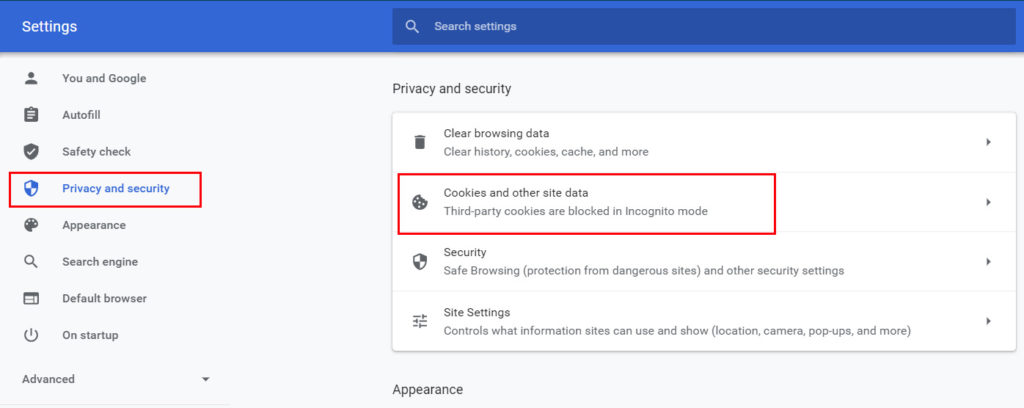
helpH2 Periodically, updates of Google Chrome adjust settings that can affect cookies. Match My Email uses cookies for its webtab. If Chrome is blocking 3rd party cookies, and thus no data is visible on the webtab or an MME custom component, please do the following to allow four (4) exceptions. In Chrome, click the 3 […]
Leveraging Email Data with Custom Report Types
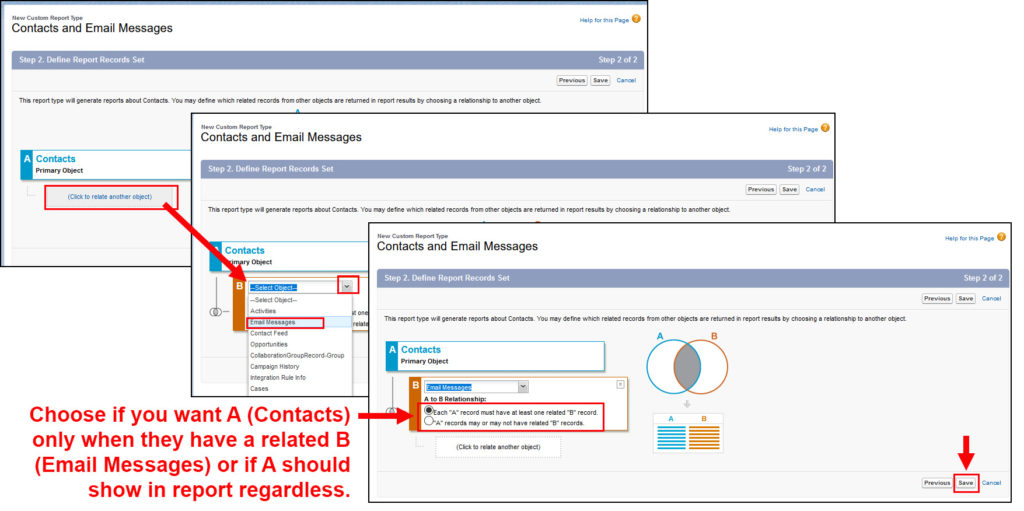
helpH2 Those that choose to upload matched messages to the Match My Email custom object can benefit from enhancements for reporting in Salesforce. Reports in Salesforce are pre-designed based on default report types. These often just involve standard objects such as Contacts and Accounts as is. Since Match My Email is a third party application, […]
Remove Email Messages List/Web Tab from User’s View
helpH2 1. Remove access for EmailMessages page for all profiles: a) Go to Setup > Develop > Visualforce Pages b) Find a page in the list with EmailMessages that belong to MME package c) Click “Security” link at the left side of the page row d) Remove all profiles from “Enabled Profiles” list e) Save […]
Liquid Web
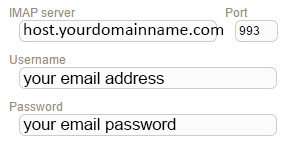
helpH2 IMAP SETTINGS DURING ACCOUNT SIGNUP IMAP SETTINGS on IMPORT TAB For assistance or questions, please contact support@matchmyemail.com.
User Permissions in Match My Email
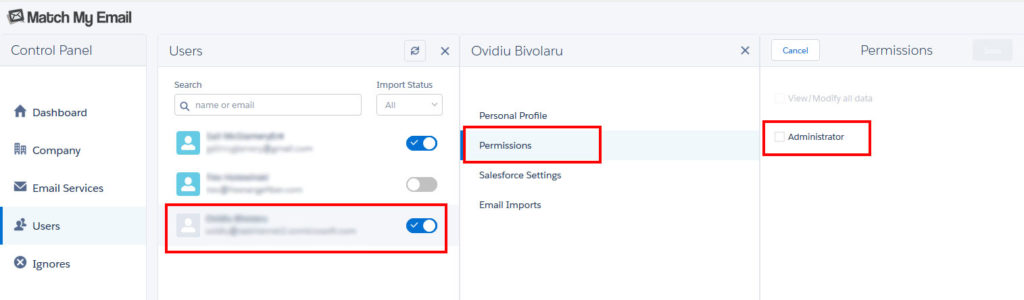
helpH2 A User that creates an account for their company is required to be a System Administrator in Salesforce. Any User that has an administrative profile in Salesforce will have Administrative Permissions in the Match My Email account. As Users are activated to use Match My Email, this remains true. Administrative Users that visit the […]