
How to Modify Upload Rules for Body and Attachments
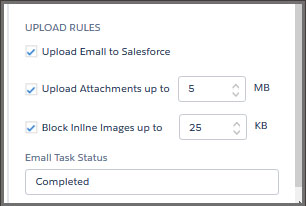
helpH2 When Match My Email matches an email, the way it uploads the message and attachments are governed by the Upload Rules. They can be found in Control Panel > Company > Salesforce Settings. (In older MME accounts, in Settings > Salesforce Integration > Domain Level Integration). The default Upload Rules settings are to move […]
Safari Browser Settings to Ensure Email Message Visibility in Salesforce
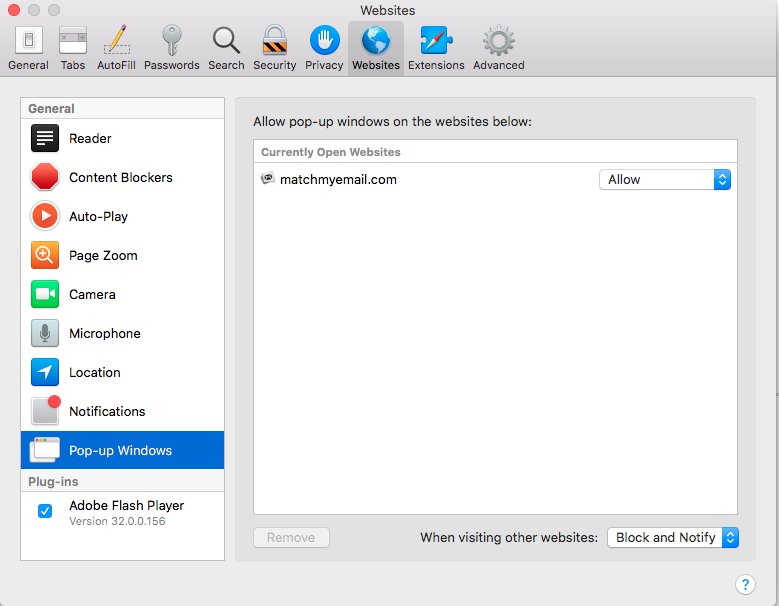
helpH2 The Safari browser, in automatic upgrades, might modify settings that result in a User not being able to see matched emails. This is different from function of the web tab. The steps here would fix an issue when a Salesforce User goes to a Contact or Account record, but sees only a blank […]
Adding Match My Email Tab to a profile in Salesforce Lightning
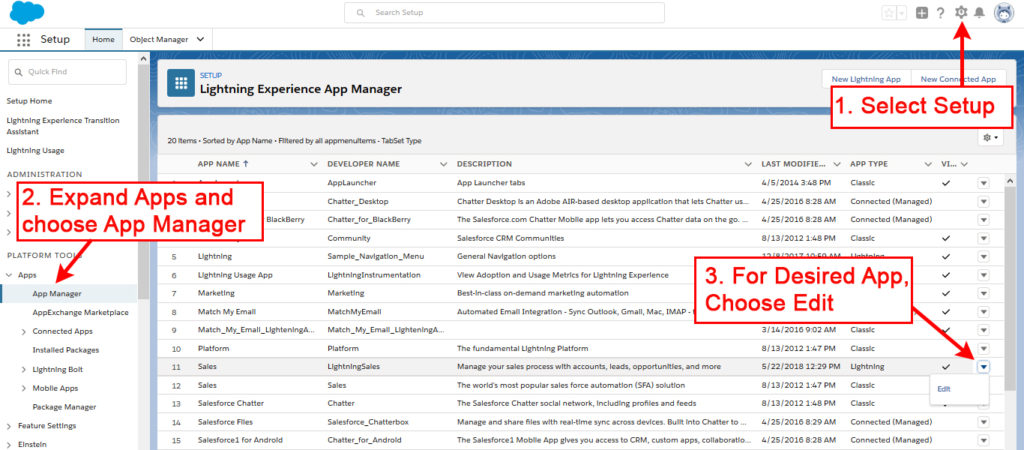
helpH2 If Users are not seeing the Match My Email tab in their Salesforce Nav Bar, it may be hidden for their Profile instead of being Default On. Scroll to find the Custom Tab Settings section for the Profile. Match My Email should show as Default On. Edit if needed and then SAVE. Once […]
Searching Attachments in Lightning
helpH2 Upon match, Match My Email uploads Attachments to File Storage by default. In Salesforce Lightning Experience, those Attachments are visible via the Lightning interface when a User opens a message. However, because Attachments are being deprecated in Lightning Experience, Attachments are not searchable. As described in this article, it would be necessary for […]
Removing a User from Match My Email
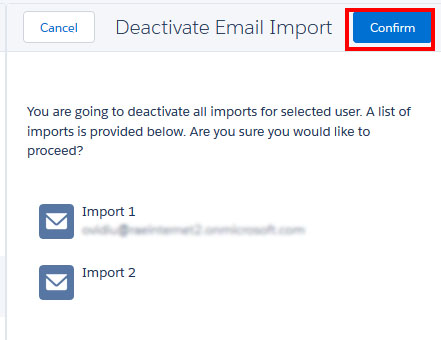
helpH2 If an employee leaves your company, or if an employee will no longer be using Match My Email, it is possible to deactivate them as a User on the account. Please know that the employee’s emails matched into Salesforce WILL REMAIN in Salesforce. However, all emails in the Match My Email cloud, matched […]
Resetting Microsoft 365 Connection via Global Admin
helpH2 It is possible that the Email Service, or connection to Microsoft 365, through an Microsoft 365 Global Admin role may not get established during initial setup steps. If that is the case, it is easy to try again, or reset, the connection. In Match My Email click Settings and click on Control Panel. On […]