
A missing email rarely looks like a problem on the day it goes missing. It shows up later: an Opportunity with no activity for three weeks, a handoff where the new rep has no context, or a pipeline report that undercounts touches on your biggest deals. When Salesforce email sync is not working, every downstream report inherits the gap.
The cause can sit in several places. It might be Outlook or Gmail, Einstein Activity Capture, user permissions, or the configuration of whichever email integration your org uses. It also helps to separate three things that often get lumped together. Email capture is how an email gets pulled from the mailbox. Email logging is how it gets written to Salesforce and related to records. Mailbox sync keeps contacts, events, or messages aligned between two systems. A failure in one does not mean a failure in the others.
The seven troubleshooting steps below cover the most common causes, roughly in the order worth checking them. If your team is tired of fixing the same gaps by hand, a dedicated Salesforce email integration such as Match My Email can automate email logging. The final sections cover when that makes sense.
Quick troubleshooting summary
- Emails not syncing? Check your Salesforce email connection (fix 1).
- Outlook or Gmail not logging? Check your integration settings (fixes 4 and 5).
- Emails missing from Opportunities? Check Opportunity Contact Roles (fix 6).
- Emails missing from reports? Check your Einstein Activity Capture settings (fix 2).
Why Are My Emails Not Syncing With Salesforce?
Most email sync problems fall into one of two groups. Either the email never reached Salesforce at all, or it reached Salesforce but is not on the record your team expected. Knowing which group you are in cuts troubleshooting time in half.
How Salesforce Email Logging and Syncing Work
Every email integration follows the same basic chain. A connection reads the mailbox. A capture rule decides which messages qualify. A matching step relates each message to Contacts, Leads, Accounts, Opportunities, or other records. Finally, the email is written to Salesforce, usually as an Email Message and Task record, where sharing rules decide who can see it.
A break at any link produces the same symptom: “the email isn’t there.” Native tools such as the Outlook and Gmail integrations depend on a rep logging emails from the side panel. Automated tools, including Einstein Activity Capture and third-party products, capture in the background. Third-party integrations also differ in where they store data and how they match records, so the right fix depends on which tool your org runs.
Salesforce Email Sync vs. Einstein Activity Capture
Einstein Activity Capture (EAC) is Salesforce’s own background capture service for Microsoft 365 and Google Workspace. It is separate from the Outlook and Gmail integrations, though orgs often run them together.
How EAC stores email matters for troubleshooting. Per Salesforce Help, orgs that set up EAC in Summer ’25 or later store captured email as Email Message and Task records when Sync Email as Salesforce Activity is on. Older setups show captured email on activity timelines only, which is why it does not appear in standard activity reports. Salesforce has announced the retirement of Activity 360 Reporting and moves legacy orgs toward the activity-sync setting (accurate as of November 2026).
How to Identify Whether the Problem Is Outlook, Gmail, or Salesforce
| Symptom | Possible Cause | Where to Check |
|---|---|---|
| No emails logging for one user | Expired or revoked connection | User Settings > Connected Accounts; EAC connection status in Setup |
| No emails logging for anyone | Global connection, service account, or integration turned off | Setup > Einstein Activity Capture; Outlook or Gmail Integration and Sync |
| Emails visible to some users only | Sharing settings or record access | EAC activity sharing; user's record access |
| Emails on the Contact, not the Opportunity | Matching or Contact Role gaps | Opportunity Contact Roles; matching rules |
| Recent emails missing, older ones present | Sync delay | Wait, then recheck; EAC sync status |
| Specific senders never appear | Excluded addresses or domains | EAC Settings > Excluded Addresses |
| Emails missing from activity reports | Timeline-only storage | Sync Email as Salesforce Activity setting |
A quick checklist before you start:
- Is the problem one user, one team, or the whole org?
- Is the email missing from Salesforce, or only from one record?
- Which tool should have logged it: Outlook Integration, Gmail Integration, EAC, or a third-party app?
- When did it last work, and what changed since then?
1. Your Salesforce Email Integration Is Disconnected
How to Check Your Salesforce Email Connection
- Ask the affected user to open their personal settings in Salesforce and find Connected Accounts. A status of disconnected or needs attention confirms the problem.
- For EAC, open Setup, enter “Einstein Activity Capture” in Quick Find, and review each user’s connection status.
- Compare the email address on the Salesforce user record with the connected mailbox. EAC expects the user’s primary mailbox, not an alias.
- If your org uses a global connection or service account, confirm it is still authorized in Microsoft 365 or Google Workspace.
How to Reconnect Outlook or Gmail to Salesforce
- Have the user disconnect the account under Connected Accounts, then reconnect it and complete the Microsoft or Google sign-in.
- If reconnecting fails, confirm the user still has the required permission set and is assigned to an active EAC configuration.
- For a stubborn user-level issue, remove the user from the configuration, reassign the permission set, add them back, and reconnect.
- Allow time for the first sync. Salesforce notes events typically arrive within about five minutes but can take several hours.
2. Einstein Activity Capture Is Not Capturing Emails
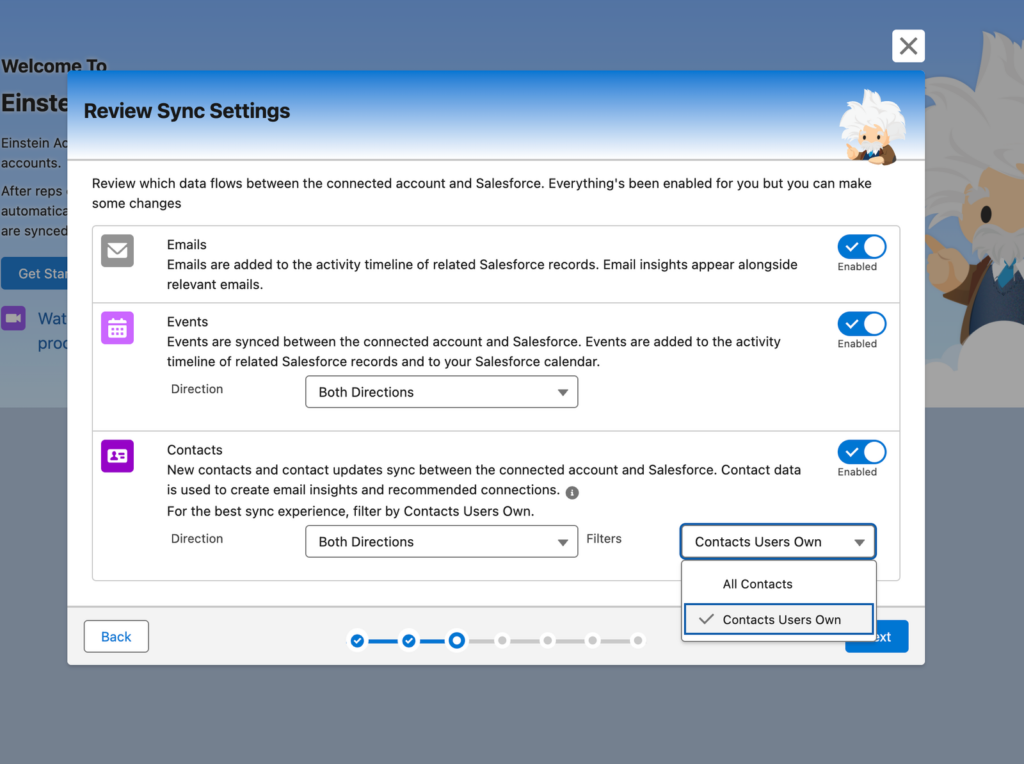
When EAC is not working, the cause is usually configuration rather than an outage. A user who is not in an active configuration captures nothing, even if their mailbox is connected. For a full walkthrough of the initial setup, see our Einstein Activity Capture setup guide.
How to Check Einstein Activity Capture Settings
- In Setup, enter “Einstein Activity Capture” in Quick Find and open Settings.
- Open Configurations and confirm the user belongs to an active configuration with email capture turned on.
- Check that the user has the EAC permission set assigned.
- Review Excluded Addresses for domains or addresses that would block the emails in question.
- Confirm whether Sync Email as Salesforce Activity is on. This decides whether captured email becomes reportable Task and Email Message records.
Why Captured Emails May Not Appear Where Expected
A capture failure and a visibility limit look identical from a record page. Check these before assuming EAC missed the email:
- Sharing. EAC applies its own activity sharing defaults. Some automated incoming email is set to “Don’t Share,” so other users cannot see it.
- Timeline only. In orgs without Sync Email as Salesforce Activity, captured email appears on the activity timeline but not in standard activity reports.
- Retention. Timeline-only data is kept for a retention period that depends on edition and license, then removed.
- Attachments. EAC does not sync email attachments.
When to Consider an Einstein Activity Capture Alternative
EAC fits many orgs, and the Summer ’25 change to store email as activity records addressed a long-standing reporting gap. Teams look at alternatives when they need email logged to custom objects, finer control over Opportunity matching, support for email systems beyond Microsoft 365 and Google Workspace, or capture that does not depend on per-user EAC configuration. The final section of this article covers those scenarios.
3. Salesforce Permissions Are Preventing Email Logging
An email can be logged correctly and still be invisible to the person looking for it. Permissions affect two separate things: whether the integration can write the email, and whether a given user can read it afterward.
Which Salesforce Permissions Should You Check?
- Feature permission sets. EAC users need the EAC permission set and permission set license. Outlook and Gmail integration users need access granted through the integration settings.
- Object access. The user, or the integration user for a third-party tool, needs create access to Tasks and Email Messages and read access to the records being matched.
- Enhanced Email. Outlook and Gmail integrations log email as Email Message records when Enhanced Email is on.Confirm it has not been changed.
- Integration user. If a third-party app logs email through a dedicated integration user, check that the user is active, licensed, and has not had a profile or permission set changed.
How to Troubleshoot Email Visibility and Record Access
- Log in as an admin and open the record. If you can see the email and the user cannot, the issue is access, not capture.
- Use the Sharing button or View Sharing Hierarchy on the record to confirm the user can reach it.
- For EAC, review the activity sharing setting in Settings. It controls who sees captured email separately from record sharing
- Check whether the email is related to a record the user owns or a parent record they can see. Tasks follow the sharing of their related records.
4. Outlook or Microsoft 365 Emails Are Not Syncing With Salesforce
Orgs on Microsoft 365 often run more than one tool at once: the Outlook Integration add-in, EAC, a third-party app, and sometimes the legacy Salesforce for Outlook desktop client. Before troubleshooting, confirm which of these was supposed to log the missing email. Our overview of Salesforce Outlook integration options explains how they differ.
Why Outlook Emails May Not Appear in Salesforce
- Manual logging was skipped. The Outlook Integration side panel logs email only when a rep clicks to log it, unless EAC or another tool captures in the background.
- The add-in is not deployed. The Microsoft 365 admin may have removed or never deployed the Salesforce add-in for that user.
- Legacy tools. Salesforce for Outlook retires in December 2027, and Lightning Sync is also being retired (Salesforce Ben, Summer ’26). Users still on either tool should be planning a move.
For older context on why automated Office 365 syncing has been hard to get right, see Trouble Getting Automated Salesforce Email Syncing With Office 365.
How to Troubleshoot Microsoft 365 Authentication and Connection Issues
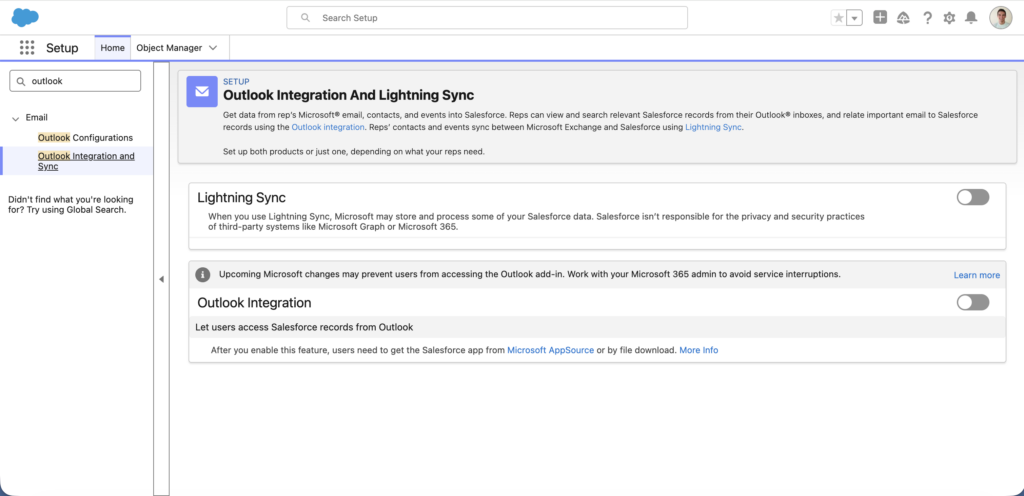
- In Setup, enter “Outlook” in Quick Find, open Outlook Integration and Sync, and confirm Outlook Integration is on.
- Confirm the Salesforce add-in is deployed to the user in the Microsoft 365 admin center.
- If EAC handles capture, check that the Microsoft 365 tenant has not revoked consent for the Salesforce app.
- Confirm the connected mailbox is the user’s primary address in user principal name format, not an alias.
- For shared or delegated mailboxes, confirm your integration supports them before treating them as a fault.
How to Verify That Outlook Emails Are Being Logged
- Send a test email from the affected user’s Outlook to a Contact that exists in Salesforce.
- Wait for the expected sync window for your tool.
- Open the Contact’s activity timeline and search for the subject line.
- If it appears for an admin but not the user, return to section 3. If it does not appear at all, the problem is connection or capture.
Tired of manually logging emails or dealing with recurring Salesforce sync issues? See how Match My Email automates the process.
5. Gmail or Google Workspace Emails Are Not Syncing With Salesforce
Gmail problems usually trace back to authorization: the wrong Google account, a revoked OAuth grant, or a Workspace admin policy that blocks the Salesforce app.
How to Check Your Gmail and Salesforce Connection
- In Setup, enter “Gmail” in Quick Find, open Gmail Integration and Sync, and confirm Gmail Integration is on.
- Confirm the user has the Salesforce Chrome extension installed and is signed in to the right Salesforce org.
- Check that the Google account connected under Connected Accounts matches the user’s work address. Reps with personal and work Gmail accounts in the same browser often connect the wrong one.
How to Fix Google Workspace Authorization Issues
- In the Google Workspace admin console, confirm the Salesforce app is allowed under API controls and has not been blocked or restricted.
- If EAC uses a global connection through the Google Workspace Marketplace app, confirm the app is still installed and authorized for the right organizational units.
- Have the user disconnect and reconnect the Google account in Salesforce, approving all requested scopes.
- If Enhanced Email with Gmail appears in Gmail Integration settings, confirm it is on.
How to Confirm Gmail Emails Are Appearing in Salesforce
Send a test email to a known Contact, wait for your tool’s sync window, and search the Contact’s activity timeline for the subject. If the test email logs but older emails do not, check the configuration’s “days back” setting and your exclusion rules in section 7.
6. Emails Are Syncing but Not Appearing on the Correct Salesforce Records
Sometimes capture works fine and the email is in Salesforce, just not where anyone looks for it. This is a matching problem, not a sync problem, and it is the most common reason emails are missing from Opportunities.
Why Emails May Appear on Contacts but Not Opportunities
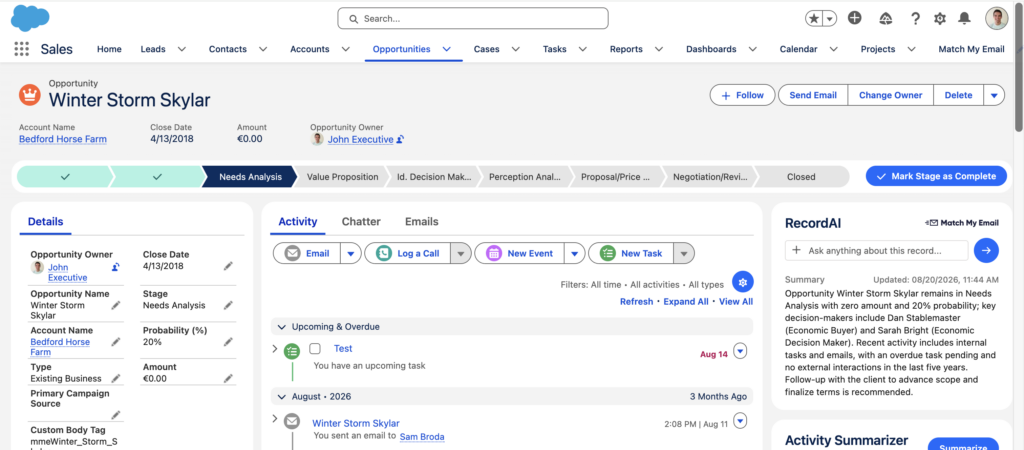
Matching a Contact is simple: the email address in the header matches the Contact’s email field. Matching an Opportunity takes an extra step, because an email address does not point to a deal on its own. Most tools rely on Opportunity Contact Roles to make that link. If the Contact is not listed as a Contact Role, or the Opportunity is closed, the email may land on the Contact and Account only. Read more in Salesforce Emails Not Showing on Opportunities? and Matching Emails to Salesforce Opportunities.
How Salesforce Matches Emails to CRM Records
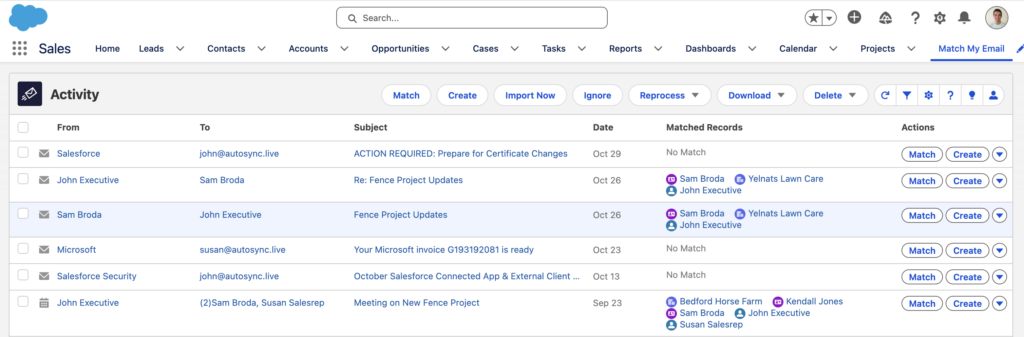
With Sync Email as Salesforce Activity on, EAC uses a standard flow, Activities: Match Email to Records, which matches Leads and Contacts first, then Accounts and Opportunities (Salesforce Ben). Admins can customize the flow when default logic does not fit. Third-party tools use their own matching rules, so check your vendor’s documentation for how it handles multiple matches.
How to Troubleshoot Missing or Incorrect Email Associations
- Find the email on the Contact record and open it. Note which records it is related to.
- Open the target Opportunity and confirm the sender or recipient is a Contact Role.
- Check whether the Opportunity is open. Some tools skip closed deals.
- Search for duplicate Contacts or Leads with the same email address. Duplicates split activity across records.
- Confirm the email address on the Contact matches the one actually used in correspondence, including aliases.
7. Email Sync Delays, Filters, or Configuration Settings Are Causing Missing Emails
Not every missing email is lost. Some are still in transit, and others were excluded on purpose by a rule someone set up months ago.
How Long Should Salesforce Email Sync Take?
It depends on the tool, and very few integrations run in true real time. Salesforce documents that EAC event sync from Microsoft or Google typically takes about five minutes but can take up to several hours (Salesforce Help). After initial setup or a reconnection, allow up to 24 hours before treating data as missing. Third-party tools publish their own sync intervals, so check your vendor’s documentation for a baseline.
How to Check Email Filters and Exclusion Rules
- In EAC Settings, review Excluded Addresses. Internal domains are often excluded deliberately, which also blocks email to colleagues who use external-looking aliases.
- In the EAC configuration, check how many days back capture reaches and which email types are captured.
- Review Advanced Settings for header-only capture, which logs metadata without the email body.
- Check any matching flow customizations for conditions that skip certain senders or domains.
- In third-party tools, review filters for domains, folders, or keywords.
How to Determine Whether Emails Are Delayed or Missing
Note the email’s sent time and compare it to your tool’s normal sync window. If newer emails from the same user are logging, the older one was likely filtered, not delayed. If nothing from that user has logged since a certain date, look at the connection first (section 1).
How to Prevent Salesforce Email Sync Problems in the Future
Most sync failures are quiet, so prevention comes down to noticing them before a rep or manager does.
Regularly Review Email Integration Connections and Permissions
Add a monthly check to your admin routine. Review connection status for every captured user, confirm new hires were added to the right configuration, and remove departed users. After any Microsoft 365 or Google Workspace policy change, recheck app consent.
Monitor Missing Emails and Activity Logging
Build a report of active users with no logged email activity in the past seven days. A rep with an active pipeline and zero logged emails almost always has a broken connection. Pair it with a report of open Opportunities with no activity in 30 days.
Use Consistent Email Matching and Logging Rules
When Should You Consider a Dedicated Salesforce Email Integration?
Limitations to Consider With Native Salesforce Email Capture
- Manual logging. The Outlook and Gmail integrations depend on reps choosing to log each email.
- Record coverage. EAC relates email to standard objects such as Accounts, Contacts, Leads, Opportunities, Contracts, and Quotes. Orgs that work in custom objects may need more.
- Email systems. EAC supports Microsoft 365 and Google Workspace. Orgs on other mail servers need a different route.
- Legacy storage. Orgs that set up EAC before Summer ’25 may still have timeline-only email until they move to Sync Email as Salesforce Activity.
Comparison details accurate as of November 2026. See Salesforce Help for current behavior.
Benefits of Automated Salesforce Email Logging
Automated logging removes the rep from the loop. Email is captured in the background, related to records by rule, and stored where reports, forecasts, and AI tools can use it. The result is an activity history that reflects what actually happened, not what someone remembered to click.
How Match My Email Helps Simplify Salesforce Email Logging
Match My Email is activity capture for Salesforce. It logs emails and calendar events to the right records automatically, in the background.
- Stored in your org. Email and event data is stored natively in your Salesforce org.
- Works with your email system. It supports Outlook, Microsoft 365, Exchange, Gmail, Google Workspace, and IMAP-compatible servers.
- Opportunity matching through Contact Roles. Emails match open Opportunities by comparing header addresses with the Opportunity’s Contact Roles, and still log to the related Contact and Account.
- Multiple record matching. One email can relate to several Contacts, Leads, and an Account at once.
- Custom matching. Admins can tune matching rules to fit how their org works.
- Email Sync Assistant. Helps reps create records for correspondents not yet in Salesforce.
Match My Email logs what your email system makes available. It does not fix authentication, permission, or connection problems in Microsoft 365, Google Workspace, or Salesforce itself, so the checks in sections 1 through 3 still apply.
Stop losing track of customer conversations. Match My Email automatically logs emails, matches them to the right Salesforce records, and keeps your sales activity complete. Try it free for 14 days.
Frequently Asked Questions About Salesforce Email Sync
Why are my emails not syncing to Salesforce?
The most common causes are a disconnected email account, a user missing from an active Einstein Activity Capture configuration, or a missing permission set. Excluded addresses, sync delays, and sharing settings can also make emails look missing when they were filtered or are hidden. Start by checking the user’s Connected Accounts status, then confirm their configuration and permissions, then test with a fresh email to a known Contact.
Why are Outlook emails not showing up in Salesforce?
How do I fix Gmail not syncing with Salesforce?
Confirm Gmail Integration is on in Setup and the user has the Salesforce Chrome extension. Check that the connected Google account is the work account, not a personal one. In the Google Workspace admin console, make sure the Salesforce app is allowed under API controls. Then have the user disconnect and reconnect the account, approving all requested scopes.
Why is Einstein Activity Capture not working?
Usually because of configuration. The user must have the EAC permission set, belong to an active configuration with email capture on, and have a connected primary mailbox. If emails are captured but missing from reports, check whether Sync Email as Salesforce Activity is on. Without it, email appears on the activity timeline only. Also review excluded addresses and activity sharing.


