
When will my Match My Email session time out?
helpH2
As a Salesforce User, when you access Match My Email, most often you will use the pathway Salesforce App Launcher > Match My Email. This signs you into your portion of your company’s Match My Email account, which is private to you. Your session will remain open for 30 minutes, even if you navigate into another browser tab. After a session is inactive for 30 minutes, it will time out. If this happens, then when you return to that browser tab and attempt to navigate a menu or click into an email, you may see “Internal Error” or other issues. The first thing you should do is refresh your browser tab and click again through the App Launcher to Match My Email.
Please remember, users do not need to be logged in, in order for processing and matching to occur. The importing and matching of email is still occurring in background, every 20 minutes, whether a User is signed in or not.
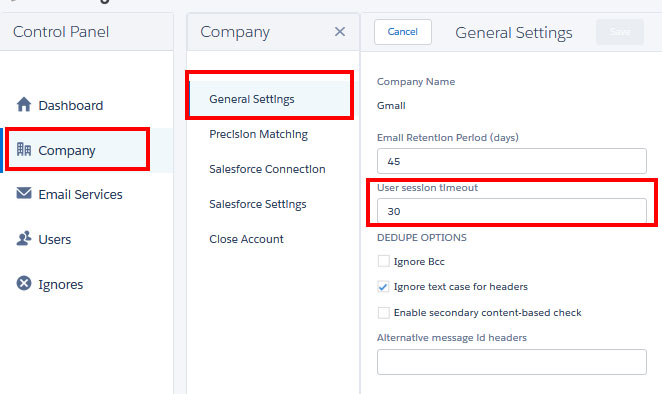
The length before a session timeout can be modified, if desired, by a Match My Email Administrator. The Admin can navigate to Salesforce App Launcher > Match My Email Setup > Control Panel > Company > General Settings > User session timeout. The value entered is minutes. Click Save.
For assistance or questions, please contact support@matchmyemail.com.