
How Can We Help?
Creating a Debug Log in Salesforce
Actions in Salesforce that are resulting in errors can be tricky to troubleshoot. It can sometimes be helpful to run a debug log. Errors can be detailed there and help provide direction on where settings or permissions are resulting in the error. This can be especially helpful for the AI Activity Summarizer feature available with the Match My Email app.
When logged in as a System Administrator and you are experiencing the error, you can do the following:
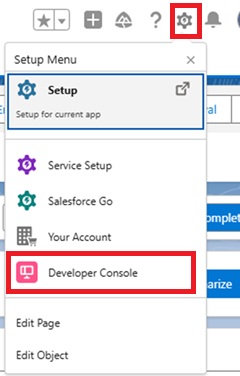
- Navigate to the Developer Console. If you are unsure where this is, go to Salesforce Setup > Developer Console. This will open another browser window showing the console.
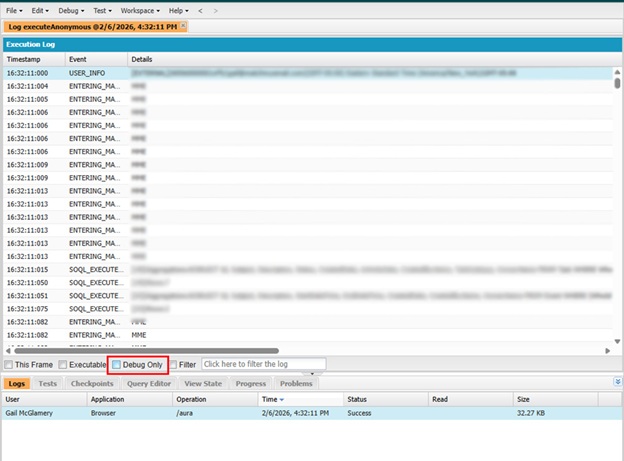
- Note the Logs tab towards the bottom. It should be highlighted.
- Click back to your view of Salesforce.
- Navigate to the record from which you took action and the error occurred. Repeat the action.
- If you then click to the Developer Console window, you should see a log generated.
- Click the Debug Only box to view that portion of the execution log.
If the error is occurring for other Users that are not System Administrators, you can impersonate the User and view the Debug Log for them. You may need to be sure Debug logs are available for that User first.
Steps for turning on Debug Logs for end user
- While logged in as the System Administrator, go to Salesforce Setup.
- In the Quick Find, type Debug Logs and click that option.
- Under User Trace Flags, click New.
- Next to Trace Entity Name, click the search icon.
- Select the User you will impersonate.
- Next to Debug Level, click the search icon to use a pre-existing debug level or create a new debug level with Apex Code set to DEBUG or FINE.
- You can then impersonate the User in Salesforce.
- Go to Settings > Developer Console which will open as a new browser window. Click the Logs tab.
- While impersonating the User, navigate to the record from which an action resulted in an error. Repeat the action to reproduce the error.
- Review the logs, specifically click the Debug Only option.