
AI Activity Summarizer Troubleshooting Tips
If you are seeing this alert message, we suggest the following troubleshooting steps.

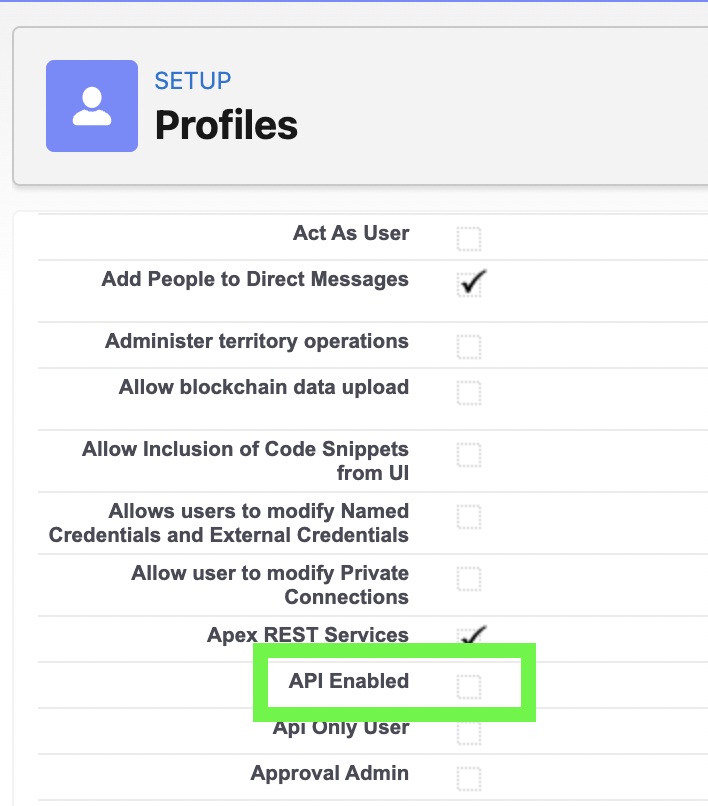
Confirm that API is enabled for the User’s profile that is seeing this error.
Navigate to the Profile for Users getting the Summarizer error. Scroll down to the Administrative Permissions section. There should be a feature listed for API Enabled. If it is not enabled, check the box and Save. Did this solve the error?
Review OpenAI settings for the API key
- Login to your OpenAI account (platform.openai.com).
- Go to Settings. (click the gear at the top right of the screen.)
- In the left menu, click API keys. Find the key that you created and confirm under Permissions that All is showing.
- In the left menu, click Billing. Confirm you have added some credit, even $5, to the account.
Check the Named Credentials in Salesforce
- Go to Salesforce > Setup > Named Credentials
- Click the tab for External Credentials.
- Click the OpenAI_API_Key listed.
- Look to the Custom Headers section and confirm in the Value that the word Bearer is in front of our API key string.

Debug Log
If the error continues to appear for a Salesforce Administrative User or perhaps only for a non-Admin User, it may save time to provide our team with the debug log. This will record more information about the error occurring when the Summarize button is pushed.
- Review our article on how to create a debug log or you or when you impersonate a non-Admin User.
- Viewing the log, click Debug Only and scroll to the section in the log that starts with “ExceptionCaught…”
- Scroll so that that line and the next 20 or so lines after it until the line starting with “DEBUG | New Response” are visible. Our team will want to review the debug log between Exception Caught and Debug | New Response and do not need the text after Debug | New Response.
- Please take a screenshot of that section and attach it to an email to our support team.