
Match My Email, or MME, is an ISV Partner of Salesforce that is listed on Salesforce’s AppExchange. MME primarily competes against Einstein Activity Capture, or EAC, for supremacy in automatic activity logging to Salesforce. One feature that Match My Email offers that EAC does not offer is the View All permission setting. This article aims to outline what is MME’s View All, how it works, and who can benefit from View All.
Understanding the Match My Email Dashboard
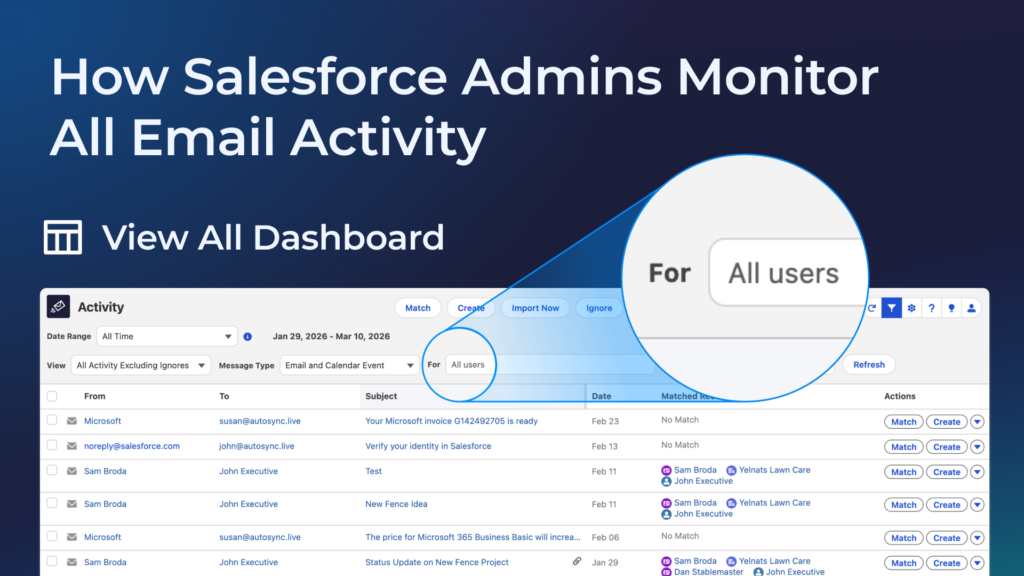
To understand View All permissions, it is first important to understand the MME Dashboard. The MME dashboard is an interface where an end user can see all the emails and events that have been processed for them in the past forty-five days. Unlike EAC, MME provides each end user with this “look under the hood”. From the MME Dashboard, users can also manually match activities, create new records, add ignore rules, and much more.
Default Dashboard Permissions
When a client subscribes to Match My Email, by default all users will have restricted dashboard settings so that they are only able to view their own emails and events. With written consent from a Salesforce Administrator, Match My Email’s support team can enable View All for specific individuals when requested. It’s important to note that there is no way an end user of Salesforce Admin can turn on View All by themselves.
How to Enable View All in Match My Email
Once MME is installed and configured in a Salesforce org, activating View All is a safe and simple process. Below are the steps on how to enable view all in Match My Email.
- Contact Match My Email support
- Provide written authorization from a Salesforce administrator
- Specify which users should receive View All permissions
- Support enables the permission in the system
View All Permission in Match My Email Enabled. Now what?
Once View All is enabled, people in administrative roles can celebrate. Gone are siloed mailboxes and afternoons spent chasing down a colleague to ask a simple question. With View All enabled, a user can see activities processed by all active MME users from the MME Dashboard. MME’s filtering allows users with View All to select individual users’ activities to display. Below are just a few examples of View All privilege’s value
- Salesforce Admins can easily answer the question, “what happens if I’m not seeing an email in Salesforce?”
- Secretaries needing to monitor their team’s mailboxes to make sure nothing’s slipping through the cracks.
- When a team member suddenly calls in sick, it’s easy for a user with View All to monitor their colleague’s emails.
- Executives want to have oversight of their employees’ email and calendar activity.
Match My Email vs Einstein Activity Capture
When it comes to comparing Match My Email with Einstein Activity Capture, based on visibility and transparency, it’s a no contest. For organizations that require detailed monitoring and administrative control, the Match My Email dashboard and View All permission provide a level of transparency that many administrators come to rely on.
Einstein Activity Capture’s Shortcomings
While MME shines in administrative transparency, EAC has been called “a black box”. Einstein Activity Capture does not have a feature comparable to Match My Email’s View All, nor does it offer its users a personal dashboard. The best users will get is looking on individual Salesforce records to see if an email shows up on the Activity Timeline.
| Feature | Match My Email | Einstein Activity Capture |
|---|---|---|
| Activity dashboard | Yes | No |
| Admin troubleshooting visibility | Yes | Limited |
| Manual activity matching | Yes | No |
| Organization-wide activity view | Yes (with View All) | No |
Final Thoughts
View All provides executives and administrators with the power of transparency. For Salesforce administrators responsible for maintaining data accuracy and supporting their teams, View All can be an invaluable tool. To learn more about View All and how the rest of Match My Email works, schedule some time for a demo using the scheduler Match My Email’s website.
Frequently Asked Questions About Match My Email View All
What is the View All permission in Match My Email?
The View All permission allows a designated user to see email and calendar activities processed for all active Match My Email users within the organization. Normally, users can only see activities associated with their own mailbox. With View All enabled, administrators or authorized users gain broader visibility into email activity across the system.
Who should have View All permissions?
View All permissions are typically granted to:
- Salesforce administrators
- Sales operations managers
- Executive assistants
- Sales managers
These roles often require greater visibility into communication activity for troubleshooting, monitoring, or operational oversight.
Can Salesforce administrators enable View All themselves?
No. The View All permission cannot be enabled directly by a Salesforce administrator inside the system. Instead, administrators must request the feature through the Match My Email support team, who will enable the permission after receiving proper authorization.
Is the View All permission secure?
Yes. Match My Email requires explicit approval before enabling the View All permission for any user. This ensures that only authorized individuals have access to organization-wide activity data.
How long does Match My Email store activity in the dashboard?
The Match My Email dashboard typically displays processed email and calendar activity for the previous 45 days. During that time, users can review activity, troubleshoot issues, and manually match emails to Salesforce records if necessary.
How does Match My Email compare to Einstein Activity Capture for visibility?
Match My Email provides administrators with a transparent dashboard and the ability to enable View All permissions for broader activity visibility. In contrast, Einstein Activity Capture offers more limited access to activity monitoring and troubleshooting data.


