
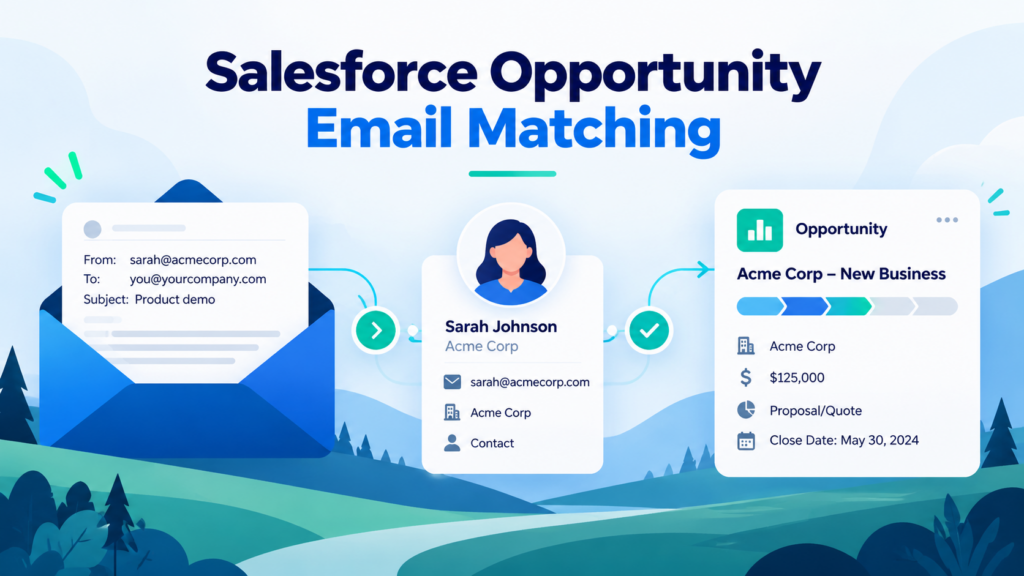
When a rep emails a buyer, that conversation is most useful sitting on the deal it belongs to. Opportunity email matching puts relevant email on the Salesforce Opportunity, so anyone reviewing the deal sees the history without asking for forwarded threads or searching inboxes.
Match My Email handles this automatically for Gmail, Outlook, and other mail systems. This guide explains how it decides which Opportunity an email belongs on, how Contact Roles fit in, and what to check when a message lands somewhere else.
What is Salesforce Opportunity email matching?
Opportunity email matching is the process of associating an email with the Salesforce Opportunity it relates to.
Three records are involved, and they do different jobs:
- Contact – a person, such as a buyer at a prospect company
- Account – the company that person works for
- Opportunity – a specific potential sale to that Account, with a stage, amount, and close date
An Account can have several Opportunities at once. Say Acme Corp is evaluating a renewal and a new add-on. Both are Opportunities on the Acme Account. An email from Acme’s procurement lead about the add-on is most useful on the add-on Opportunity, not just on her Contact record. Matching is how it gets there.
How does Match My Email match emails to Opportunities?
Match My Email compares every email address in a message’s header – To, From, CC, and BCC – with the email fields in your Salesforce org. When an address matches, it uploads a copy of the email and its attachments and relates it to the matching records.
For Opportunities, the path runs through the people on the deal:
- Address to Contact. An address in the header matches a Contact’s email.
- Contact to Opportunity. If that Contact is a Contact Role on an open Opportunity, the email is related to that Opportunity.
- Fallback through the Account. If the Contact has no Contact Role on any open Opportunity, Match My Email follows the Contact to its Account and relates the email to an open Opportunity on that Account.
The email also stays on the matched Contact and rolls up to its Account, so the conversation is visible from all three records.
Opportunity matching is turned on per object in the Match My Email Control Panel (Company > Salesforce Settings > Matching Rules for all Users). Orgs with deals that do not map cleanly to Contact Roles can match on a custom field instead, or use name tags in the subject line to pin a thread to one specific Opportunity.
How do Opportunity Contact Roles affect email matching?
Contact Roles are the most precise way to tell Match My Email which deal an email belongs to.
An Opportunity Contact Role links a Contact to a specific Opportunity and records their part in it. On the Acme add-on deal, that might look like this:
| Contact | Role |
|---|---|
| Dana Ruiz | Decision Maker |
| Priya Shah | Evaluator |
| Tom Becker | Economic Buyer |
With those roles in place, an email from Priya matches the add-on Opportunity directly, even if Acme also has an open renewal. Without them, Match My Email falls back to the Account, which can put the email on the wrong open deal when an Account has more than one.
Two things are worth knowing. First, Contact Roles you add or change by hand are what matching uses from then on. Second, a Contact showing in the Contact Roles picker is not the same as an assigned role. Check the Contact Roles related list on the Opportunity itself.
What happens when an Opportunity is created?
Whether an Opportunity starts with Contact Roles depends on how it was created, so check rather than assume.
- Lead conversion. When a Lead converts and an Opportunity is created in the same step, Salesforce adds the converted Contact as the primary Contact Role.
- From a Contact record. Creating an Opportunity from a Contact’s related list can add that Contact as a Contact Role, depending on your org’s settings and page layout.
- From an Account or the Opportunities tab. No Contact Role is added. Matching falls back to the Account until someone adds roles.
If your team creates many Opportunities from Accounts, adding the Contact Roles related list to the Opportunity layout – and making it part of your stage process – closes most of the gap.
Can emails match to closed or multiple Opportunities?
By default, Match My Email matches to open Opportunities only. Once a deal is Closed Won or Closed Lost, new email stops landing on it. Emails already matched stay where they are. If your team needs post-close conversations on the Opportunity, closed matching can be set up with custom rules.
Whether one email can relate to more than one Opportunity depends on how your org stores email:
| Upload method | Contacts and Leads per email | Opportunities and other records per email |
|---|---|---|
| Salesforce Enhanced Email | Multiple | One |
| Match My Email custom Email Message object | Multiple | Multiple |
| Task (Activity History) | One | One |
Enhanced Email is the usual choice for Lightning orgs because email appears in the standard Activity Timeline. If a single thread genuinely belongs on several deals, the custom Email Message object or subject-line name tags handle that more cleanly.
Why aren’t emails appearing on Salesforce Opportunities?
Most missing emails come down to one of four things:
- None of the addresses in the header match a Contact in your org
- The Contact has no Contact Role on the Opportunity, so the email went to a different open deal on the Account
- The Opportunity was already closed when the email was sent
- Opportunity matching is not enabled in the Control Panel, or email is not shown on the Opportunity page layout
For step-by-step fixes, including how Einstein Activity Capture handles the same situation, see Salesforce Emails Not Showing on Opportunities? Fix It.
Best practices for reliable Opportunity email matching
- Add Contact Roles early. Assign roles when an Opportunity is created, especially when the Account has more than one open deal.
- Keep Contact email addresses current. Matching starts from the address, so an outdated email field means no match.
- Show Contact Roles and email on the Opportunity layout. Reps can’t maintain what they can’t see.
- Test with a real deal. After any configuration change, send a test email to a Contact Role on an open Opportunity and confirm where it lands.
FAQs
Do Opportunity Contact Roles have to be populated?
Can one email match multiple Opportunities?
It depends on your upload method. Salesforce Enhanced Email relates each email to one Opportunity or other non-person record. The Match My Email custom Email Message object can relate one email to several Opportunities, Accounts, and Cases. Task-based uploads relate to a single record.
Does matching continue after an Opportunity closes?
What should I check when an email does not appear?
Are email attachments linked too?
Yes. Match My Email uploads attachments with the email, so they appear on the same records the message matches. The default size limit is 5 MB per attachment, and it can be changed for your account.
Are email attachments linked too?
Yes. Match My Email uploads attachments with the email, so they appear on the same records the message matches. The default size limit is 5 MB per attachment, and it can be changed for your account.
Keep Opportunity conversations on the deal.
When email lands on the right Opportunity, forecast reviews, handoffs, and follow-ups start from the full history instead of someone’s inbox. Match My Email runs in the background against your existing Salesforce records, so reps don’t log anything by hand.
See how it works with your org: start a free trial or read more about Match My Email’s Salesforce email integration.


