
How to set up your OpenAI API key for AI features (RecordAI and Activity Summarizer)
This article is for Match My Email customers setting up their OpenAI API key for AI features like RecordAI and Activity Summarizer. Setup is easy and takes just a few minutes.
We designed our Activity Summarizer so customers can connect their org directly to OpenAI.
This is for a few important reasons:
- It’s easy to connect to the OpenAI: OpenAI makes it so anyone can set this up in just a few minutes.
- You pay the cheapest rate possible: You do not pay for your AI usage through us so you know you are paying the lowest possible rate. Unlike Agentforce.
- Your data does not pass through our system: Your data goes directly from your Salesforce org to OpenAI via Salesforce’s secure Named Credential connection. We have no access to your data or API key when you use RecordAI or Activity Summarizer.
Set up your OpenAI API key with OpenAI (Part 1/4)
At the end of these steps you will have connected a credit card to OpenAI, added a small amount of credits, and get your API key.
We recommend starting with $20 of AI credits which should be a good amount to get started.
We recommend starting with $20 of AI credits which should be plenty to get your Activity Summarizer going.
- Create an OpenAI platform account here: https://platform.openai.com/
- Add a payment method and initial credits.
- Go to settings icon (top right) → Billing →Add payment details
- When asked for an initial credit purchase, add as little as $5 but we recommend $20 to get going.
- Configure your monthly budget.
- Go to Limits (also in Settings) → Edit Budget
- Set the budget limit to your liking. It depends on org size and usage but we recommend $20 monthly budget as OpenAI will alert you if you approach your limit.
- Create an API key.
- Go to API keys (also in Settings) → + Create new secret key
- Name the key whatever you want.
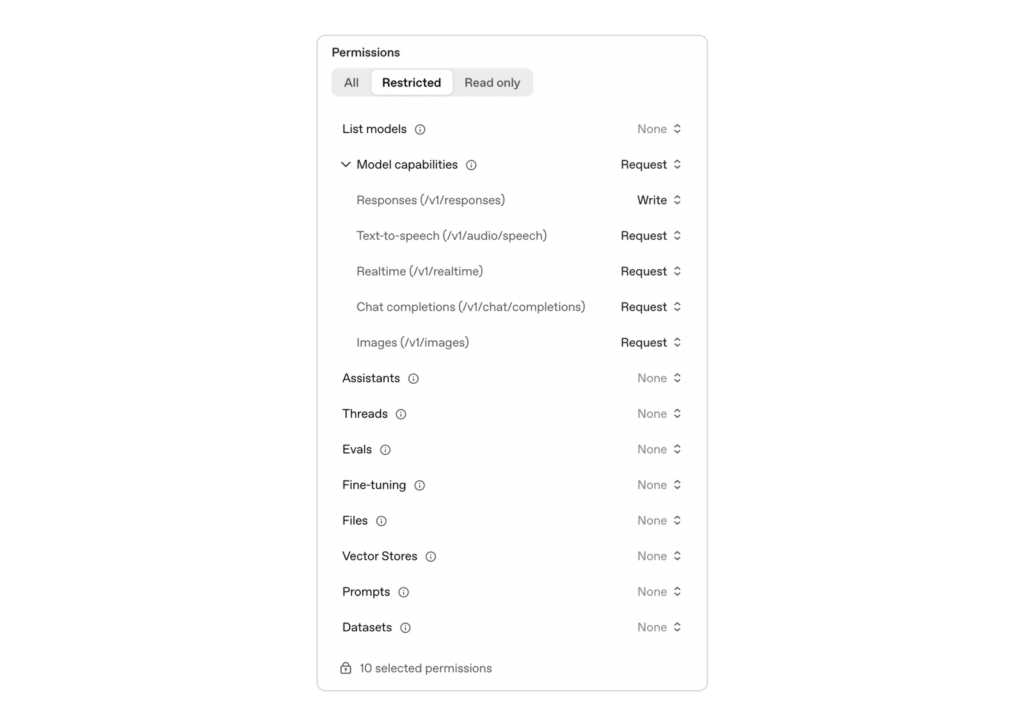
- For most limited permissions: set Model Capabilities access to “Request” and Responses access to “Write
- Once you get your API key, keep it in a safe secret place.
Optional: Turn off API Call Logging (Part 2/4)
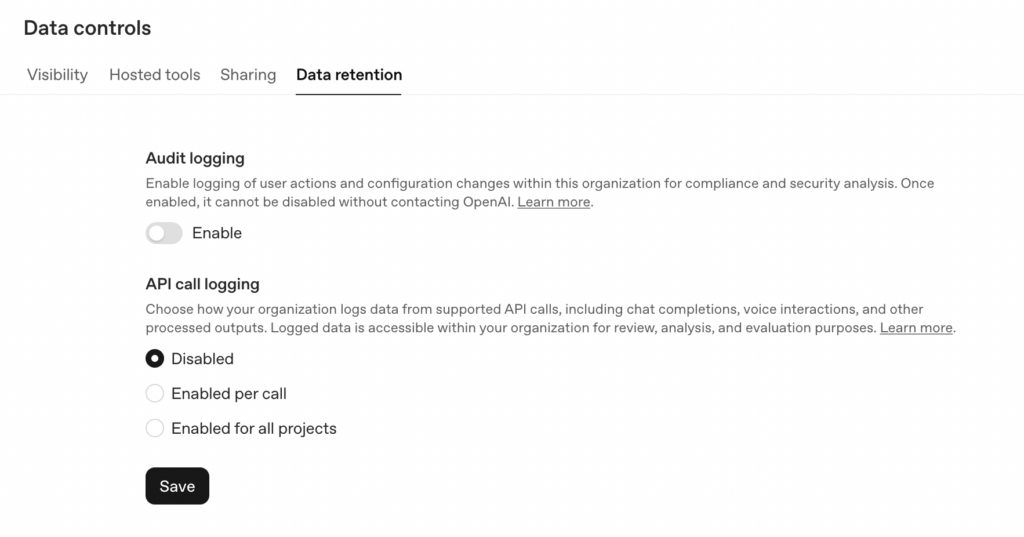
To ensure none of the data sent through the API is stored with OpenAI:
- Got to settings icon (top right) → Data Controls → Data retention tab
- Under “API Call Logging”, select “Disabled”
- Click “Save”
Add your API key to your Salesforce Org (Part 3/4)
Before adding your API key from OpenAI into Salesforce. You need to check how your activities roll up to Accounts in your Salesforce Org.
- In your Salesforce Org go to Setup
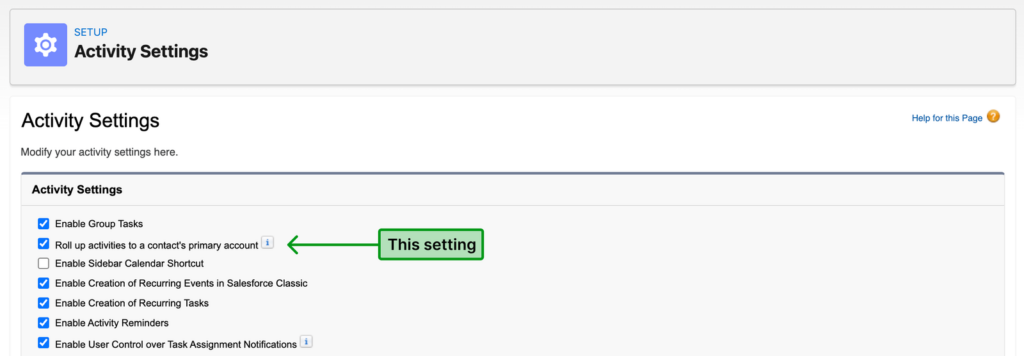
- Use the Quick Find to get to “Activity Settings”
- See if “Roll up activities to a contact’s primary account” is checked.
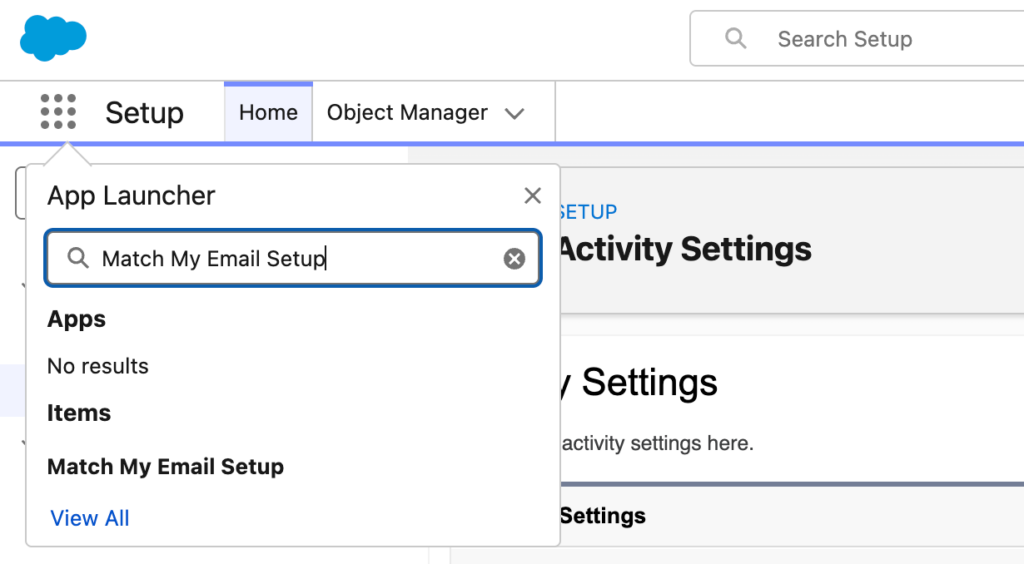
- In the top left, click on the app launcher, use search to open “Match My Email Setup”
- On the menu on the left, go to AI Settings
- Ensure Activity Roll Up Configuration is set correctly to match your organization’s configuration.
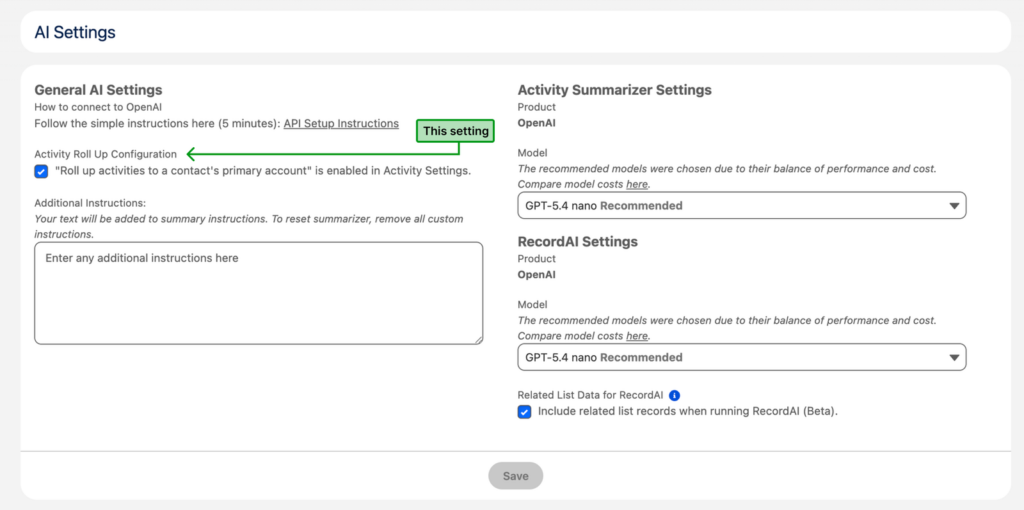
Once you have your API key, add your API key to your Salesforce Org to create the connection between your org and OpenAI.
If you are curious: named credentials and now external credentials allow for secure authenticated API callouts in Salesforce: Learn more here.
This means Match My Email can make API calls on your behalf without ever seeing or storing your actual API key.
- In your Salesforce Org go to Setup
- Use the Quick Find to get to “Named Credentials”
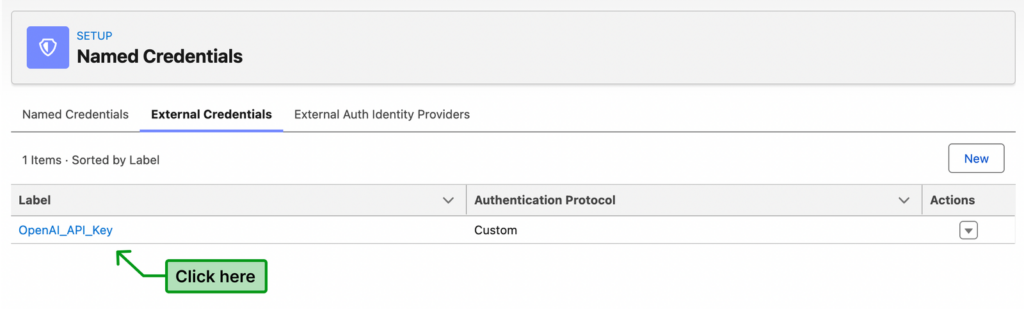
- Go to the “External Credentials” tab on the “Named Credentials” page.
DO NOT CLICK “OpenAI_API”, that is a the wrong credential to update.
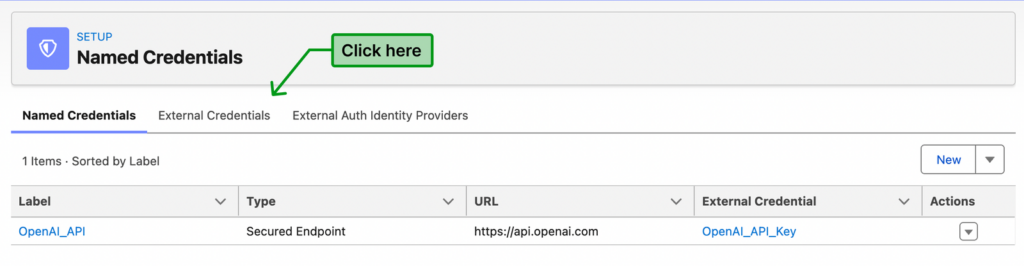
- Open external credential named “OpenAI_API_Key”
- Scroll down the page to the “Custom Headers” section and click “New”.

- Create a customer header. In the Name field, write the word “Authorization”. In the Value field, write the word “Bearer”, followed by a space, and then paste your your actual OpenAI key (see image).
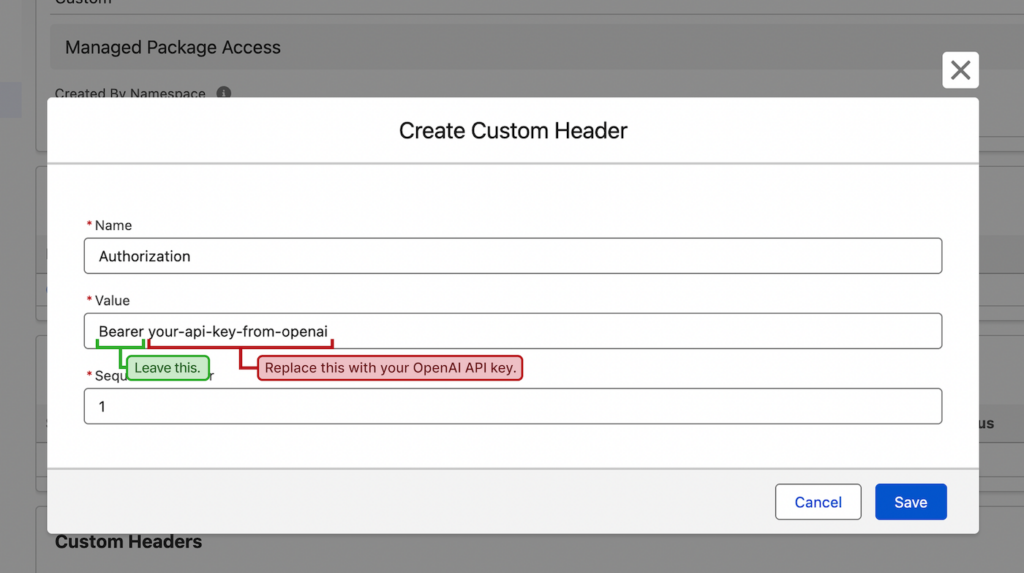
- Click “Save”
NOTE: Match My Email recommends you rotate keys (set a new API key) in OpenAI for our AI features at least once a year as a data security best practice.
Configure permissions for your Salesforce org (Part 3/4 Continued)
Once your OpenAI API key is setup in Named Credentials, the last step is to configure permissions for your users to use RecordAI or Activity Summarizer.
MME offers two permission sets:
- MME AI Generation Access: This permission set allows users to view AND generate AI responses and summaries.
- MME AI View Access: This permission set allows users to view AI responses and summaries ONLY (not generate new AI responses)
Assign the permission set for access to generate AI summaries and responses:
- In your Salesforce Org go to Setup
- Use the Quick Find to get to “Permission Sets”
- Click on “M” and open “MME AI Generation Access”
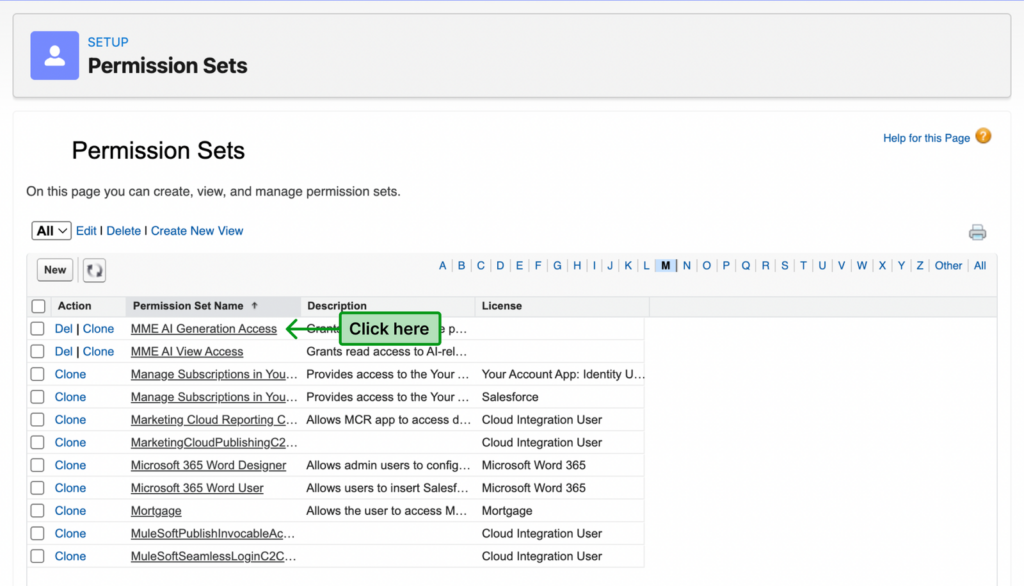
- Click “Manage Assignments”
- Click “Add Assignment”
- Assign users who you’d like to have access RecordAI and the Summarizer.
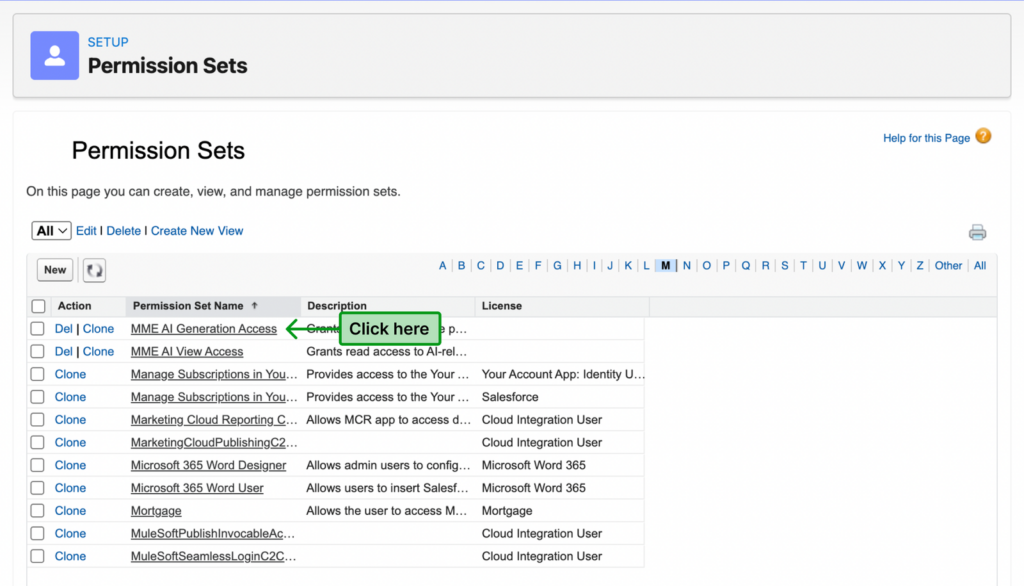
To assign the permission set for view access:
- repeat steps 1-6 for “MME AI Generation Access”
Add RecordAI and Activity Summarizer to record pages (Part 4/4)
RecordAI and Activity Summarizer are ready to be used!
This tutorial shows how to add the Summarizer but you add RecordAI the same way.
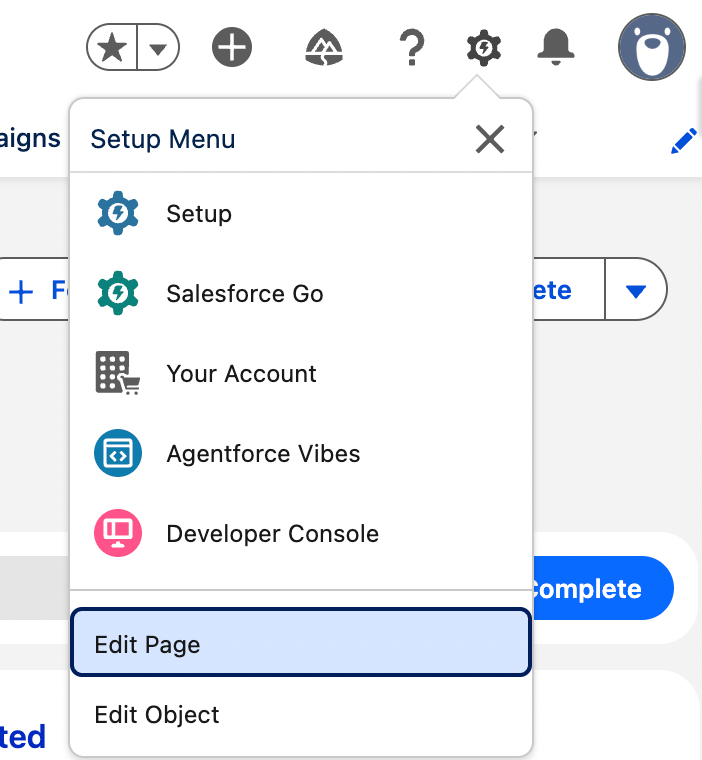
- For Activity Summarizer: Go to the page of a Contact, Lead, Account or Opportunity and under the gear icon, click “Edit Page”
For RecordAI: Go to any record page.
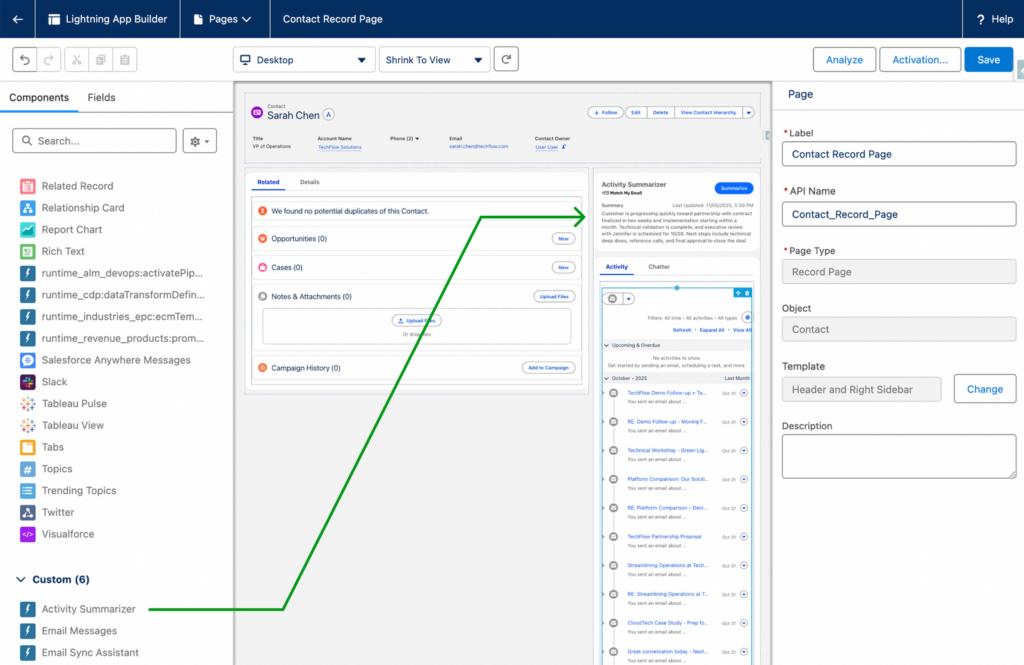
- In Lightning App Builder, on the components tab on the left, scroll down to the “Custom” section.
- Click and drag the “Activity Summarizer” (or RecordAI) component anywhere you want on the page.
- Click “Save”.
- Click “Activation” and activate the changes.
- Refresh the record page you have updated.
You are all set! We hope your team saves lots of time not spending so much time digging through Salesforce records.